Support Account View
Table of Contents

Support Account View
Activate Applications
To activate an app, log in to the Activation Console,
Activate New App, and follow the instructions. These
instructions differ from app to app, so consult your product documentation for
details. Activating a partner app typically requires steps that are unique to the
app before you can use it.
After an app is activated, the Activation Console automatically provisions it.
During this brief period (measured in minutes), you will not be able to access the
app. However, after the app is fully provisioned, you will see the tile for that app
when you log in to the Activation Console. Click the tile to open the app.
In the Activation Console, there
is a list of available partner apps. These are offered by various
vendors who provide solutions based on Cortex™ data. Partner
apps use mechanisms that are internal to Cortex and designed to support
integration with applications and services offered by vendors around the world.
A partner app is usually a service that provides a solution. The service
is owned, hosted, and operated by the partner, so to use a partner app, you must
register for the service. To discover how to get an account with the service,
Learn More in the tile for the app under
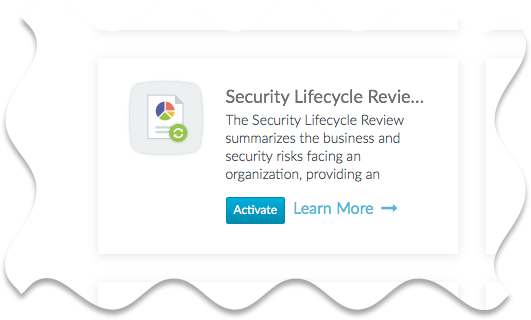
Partner Apps on the Cortex Platform. If you want to
use the app, Activate it.
Activating partner apps is similar to activating Palo Alto Networks apps
but with a few important differences. When you first click on an app after it
appears in your available apps,
- You are usually (but not always) prompted to log in to the app or to create an account with the app and then log in. The app should then walk you through the process for onboarding a new user.
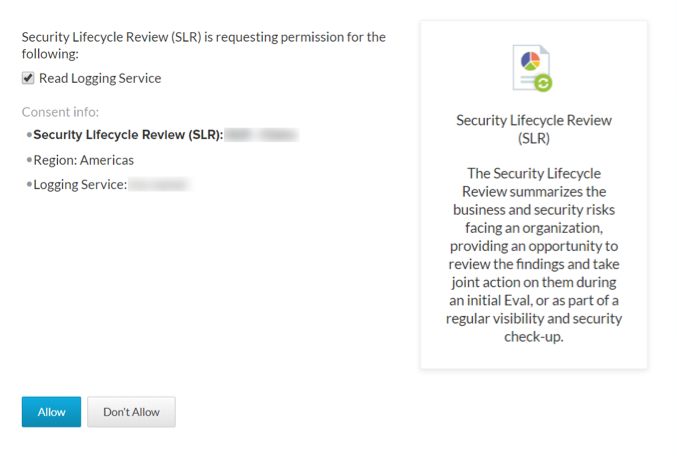
- You are asked to Allow access to your data.
![]() If you don't allow access, the app cannot function correctly. For information about why an app is requesting permissions, refer to the product documentation for the app.
If you don't allow access, the app cannot function correctly. For information about why an app is requesting permissions, refer to the product documentation for the app.
Deactivate Applications
You can deactivate active app instances from your account in the Activation Console. Deactivation, or deletion, removes internal Cortex resources
that the app instance requires for operation, including any permissions that the app
requires to access your data.
Deactivating a partner app does not cancel any accounts you have with the
partner's service, nor does it remove any data that the app collected and
stored. See the product documentation for the app to find out what you should do
if you no longer want to use the app and to understand the data retention
policies of the service.
In some cases, you can delete Palo Alto Networks apps using the Activation Console. Depending on the app, deleting it can also remove your data (for example,
deleting a Directory Sync Service instance will cause your Active Directory data to
be deleted from Palo Alto Networks servers).
To deactivate an app, you must have the Instance
Administrator role (or a higher-level role) for that app. If you have the
proper role, log in to the Activation Console, go to
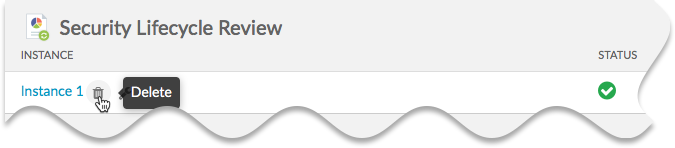
Settings, and locate the app. Hover your cursor over the
app name and you'll see a trash can that you can click to deactivate the app.
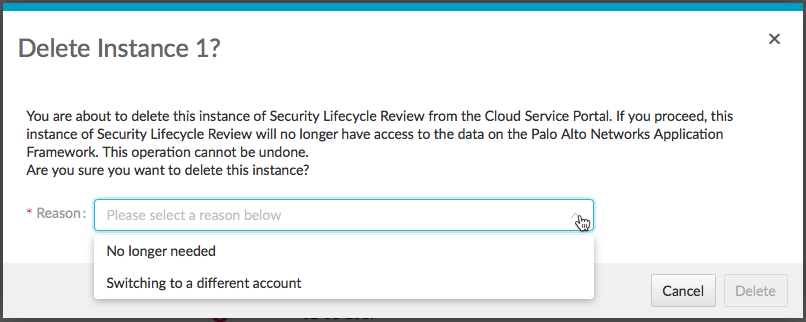
In the resulting dialog, select the reason that you are deactivating or deleting the
app and then Delete.