Prisma Access
Set Up Privileged Remote Access Profiles
Table of Contents


Set Up Privileged Remote Access Profiles
Create Privileged Remote Access profiles that define what capabilities should be enabled
when the user is accessing an app from the PRA portal.
After you configured the apps your users can access from the Privileged Remote Access (PRA)
portal, set up profiles that define the actions your users can perform when they
access an app, such as copying, pasting, downloading, and uploading content.
You can define different actions depending on the type of protocol that is used to
access an app.
For example, you can disable the copy and paste functions for RDP apps for a
particular profile. When you associate this profile later with a PRA portal policy, the policy will automatically enable only
the capabilities defined in the profile.
To set up a PRA profile:
- Navigate to the PRA Profiles page.
- For Prisma Access (Managed by Strata Cloud Manager):
- Log in to Strata Cloud Manager as the administrator.
- Select .
- For Prisma Access (Managed by Panorama):
- Launch Privileged Remote Access from the Cloud Services plugin on Panorama by selecting .
- Click Get Started.
- Select .
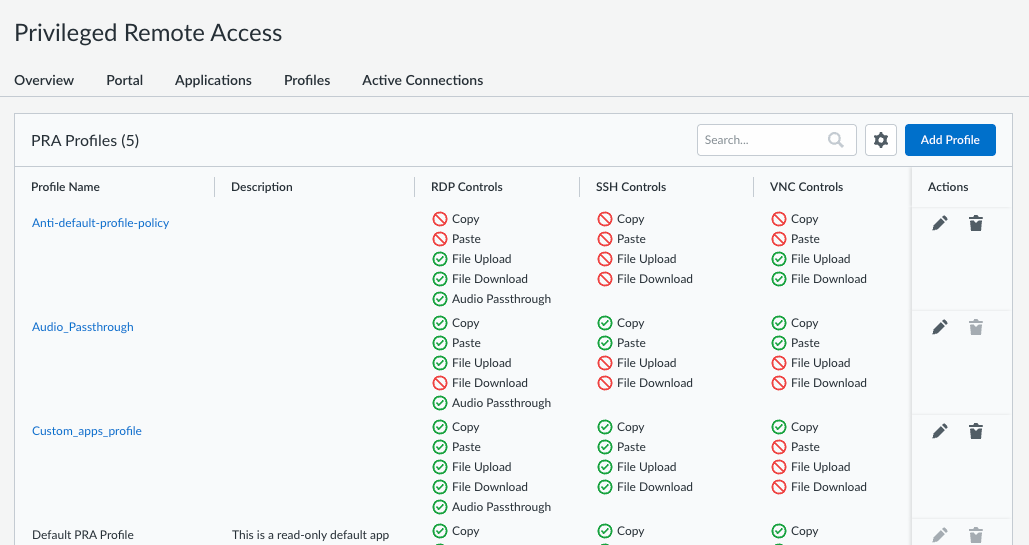
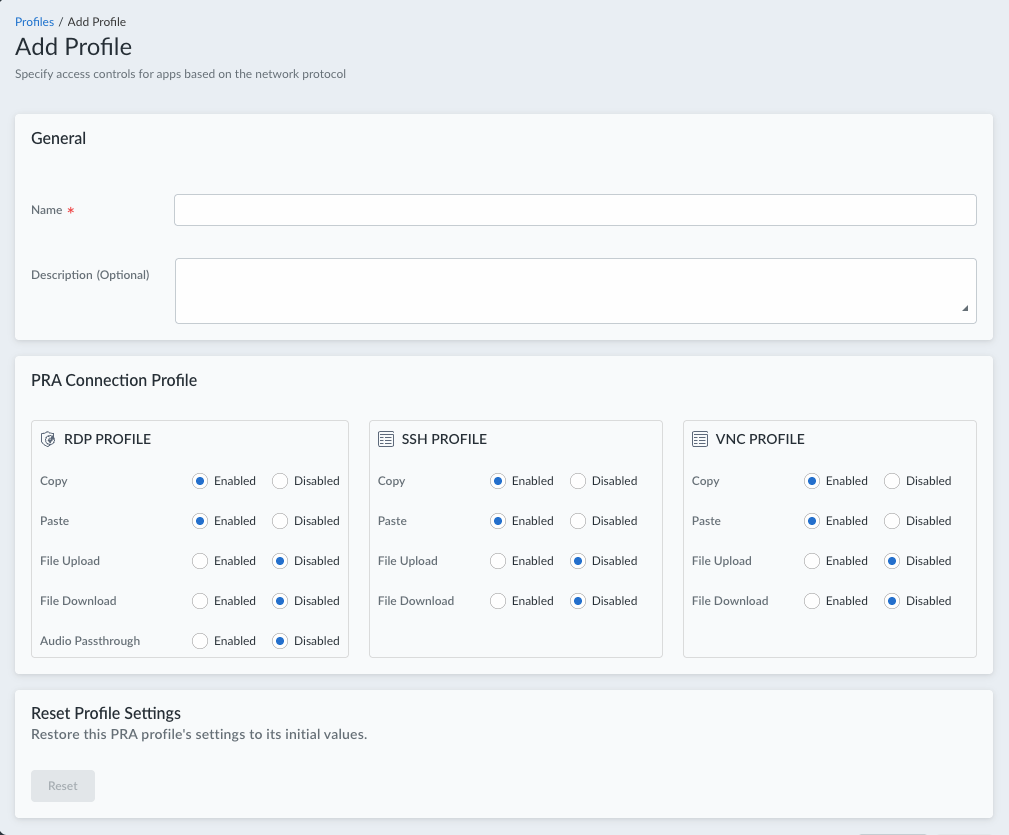
You can view the list of profiles on the PRA Profiles table. By default, PRA provides a read-only profile (Default PRA Profile) that defines the actions a user can perform when using any apps that are defined in a PRA policy or any user-defined RDP, SSH, or VNC apps that you don't manage.![]() To create a new profile, click Add Profile.Enter a Name for the profile and optionally provide a Description (Optional).Select the actions that your users can take when accessing an app in a PRA session. You can set controls for RDP, SSH, or VNC sessions.
To create a new profile, click Add Profile.Enter a Name for the profile and optionally provide a Description (Optional).Select the actions that your users can take when accessing an app in a PRA session. You can set controls for RDP, SSH, or VNC sessions.- RDP PROFILE—Set the following functions to
Enabled or
Disabled:
- Copy—Copies content from the remote app or the user's local machine. (Default: Enabled)
- Paste—Pastes content copied from the remote app to the local machine, or pastes content copied from the local machine to the remote app. (Default: Enabled)
- File Upload—Uploads files from the local machine to the remote application. The maximum permitted file size is 100 MB. (Default: Disabled)
- File Download—Downloads files from the remote application to the local machine. The maximum permitted file size is 100 MB. (Default: Disabled)
- Audio Passthrough—Enables users to hear audio from the remote app on their device. If you disable this setting, no audio from the remote app is transmitted to the user's device. Applies only to RDP apps. (Default: Disabled)
- SSH PROFILE—Set the following functions to
Enabled or
Disabled:
- Copy—Copies content from the remote app or the user's local machine. (Default: Enabled)
- Paste—Pastes content copied from the remote app to the local machine, or pastes content copied from the local machine to the remote app. (Default: Enabled)
- File Upload—Uploads files from the local machine to the remote application. The maximum permitted file size is 100 MB. (Default: Disabled)
- File Download—Downloads files from the remote application to the local machine. The maximum permitted file size is 100 MB. (Default: Disabled)
- VNC PROFILE—Set the following functions to
Enabled or
Disabled:
- Copy—Copies content from the remote app or the user's local machine. (Default: Enabled)
- Paste—Pastes content copied from the remote app to the local machine, or pastes content copied from the local machine to the remote app. (Default: Enabled)
- File Upload—Uploads files from the local machine to the remote application. The maximum permitted file size is 100 MB. (Default: Disabled)
- File Download—Downloads files from the remote application to the local machine. The maximum permitted file size is 100 MB. (Default: Disabled)
![]() (Optional) If you need to restore the PRA profile to its initial settings, Reset it.Save your profile settings. Your profile is saved to the PRA Profiles table.
(Optional) If you need to restore the PRA profile to its initial settings, Reset it.Save your profile settings. Your profile is saved to the PRA Profiles table. - For Prisma Access (Managed by Strata Cloud Manager):